User Journeys - User Guide
Flash Analytics User Journeys lets you explore how individual users navigate your product across sessions and event timelines.
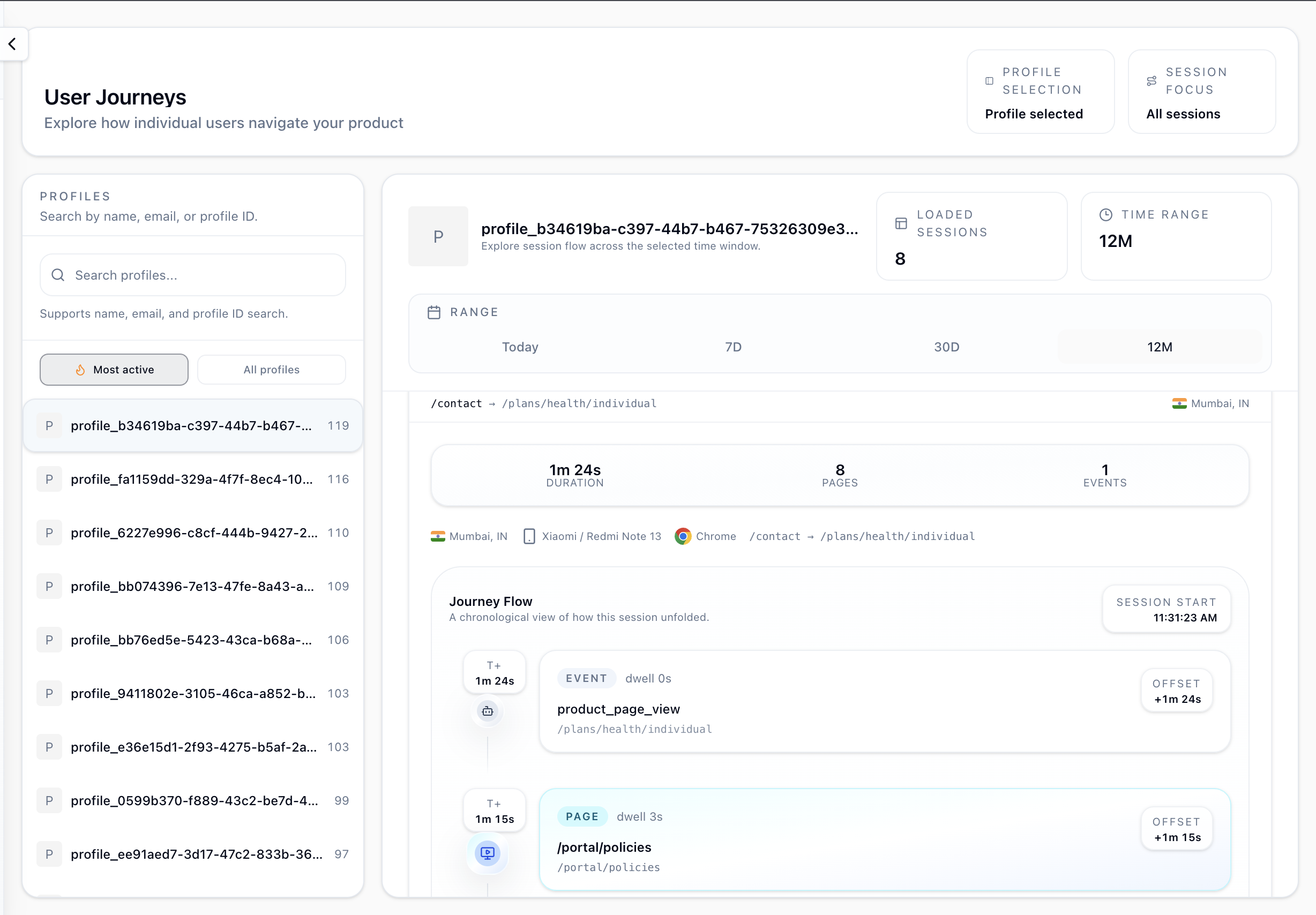
Flash Analytics User Journeys lets you explore how individual users navigate your product. Select any user profile, browse their sessions, and expand each session to see a chronological event timeline of every page view, click, and custom event in the order it happened.
Table of Contents
- What User Journeys Shows
- Navigating to User Journeys
- Profile Search - Left Panel
- Session List - Right Panel
- Session Timeline
- Date Range and Filtering
- Entry Points from Other Pages
- Caveats and Gotchas
1. What User Journeys Shows
User Journeys is a per-user exploration tool. Unlike aggregate reports such as funnels, retention, or trends, it answers questions about a single user.
- What did this user do during their last visit?
- How many sessions have they had this month?
- Where did they go after landing on the pricing page?
- What happened right before they churned?
The interface is a split panel.
- Left: Profile search, where you find and select a user.
- Right: Session list, where all sessions for the selected user are shown for the chosen date range.
2. Navigating to User Journeys
Click User Journeys in the left sidebar, listed after Sessions.
You can also reach it from:
- Sessions list: the View Journey button on any session card.
- Realtime active sessions: the Journey button on any live session.
- Profile detail page: the Journey tab on a profile navigates here with that profile pre-selected.
3. Profile Search - Left Panel
The left panel lists profiles, defaulting to Most Active, sorted by event count from highest to lowest.
Searching for a profile
Type in the search box to filter by:
- Display name, if set via the Identify API.
- Email, if set via the Identify API.
- Profile ID, either the raw UUID or your own custom ID.
Results update as you type. Click any profile row to load their sessions.
Profile list modes
| Mode | What it shows |
|---|---|
| Most active | Profiles sorted by total event count in descending order. Useful for finding power users and QA accounts. |
| All profiles | All profiles in the project, paginated. |
Note: Anonymous profiles appear as Anonymous with their internal profile ID. Identification requires a call to the Identify API from your SDK or server.
4. Session List - Right Panel
Once a profile is selected, the right panel shows all their sessions within the current date range.
Session header
| Stat | Description |
|---|---|
| Duration | Total time from session start to the last event. |
| Pages | Number of page_view events in the session. |
| Events | Total event count, including custom events. |
| Bounce | Whether this was a single-page session with no meaningful interaction. |
| Country | Geo-detected country for the session. |
| Date/time | When the session started. |
Expanding a session
Click a session row to expand it and load the full event timeline. Sessions load on demand, and events are fetched only when the row is opened.
Up to 500 events per session are loaded in the timeline view.
5. Session Timeline
The session timeline is a vertical chronological view of every event that fired during the session.
 +0:00   ●  /pricing                    [page_view]
          │
 +2:30   ◆  button_clicked              [custom event]
          │   ↳ { label: "Get Started" }
          │
 +2:35   ●  /checkout                   [page_view]
          │
+3:15 ◆ purchase_complete| Element | Description |
|---|---|
| Time marker | Time elapsed since session start, for example +2m 30s. |
| Large node (●) | A page_view event, shown larger with the page path as the label. |
| Small node (◆) | A custom event, shown with the event name. |
| Properties | Click any event node to expand its properties inline. |
Event detail
Clicking an event node reveals:
- All properties attached to the event.
- The full event timestamp.
- The event name and type.
For page views, the URL path is shown directly on the node without needing to expand it.
Session stats bar
At the top of each expanded timeline, a compact stats bar repeats the session metrics: duration, pages, events, bounce status, country, device, and browser.
6. Date Range and Filtering
The date range picker is in the right panel header.
| Range | Description |
|---|---|
| Today | Sessions from today only. |
| 7D | Last 7 days, which is the default. |
| 30D | Last 30 days. |
| 12M | Last 12 months. |
Changing the date range reloads the session list for the selected profile. The profile selection is preserved when you change dates.
Tip: For a support incident or a specific investigation, set a custom date range to isolate the exact window. Use the 7D default for recent activity reviews.
7. Entry Points from Other Pages
From the Sessions list
Every session card in the Sessions list has a View Journey button. Clicking it opens User Journeys with the correct profile selected and that session auto-expanded.
From Realtime active sessions
Each live session in the Realtime panel has a Journey button. Clicking it opens User Journeys for that session, useful for watching what a live user is doing.
Note: Because the session is still active when you navigate here from Realtime, you only see events captured so far. Refresh the page or re-expand the session to load newer events.
From Profile detail
On any Profile detail page, the Journey tab navigates to User Journeys with that profile pre-selected and the default date range applied.
8. Caveats and Gotchas
Anonymous profiles show limited information
Profiles that have never been identified appear as Anonymous with only their internal device or profile ID. Name and email search will not find them.
Up to 500 events per session
The timeline loads up to 500 events per session. For very long sessions, only the first 500 events are shown.
Sessions are loaded in the selected date range
If a user had sessions outside the selected date range, those sessions do not appear. Extend the range to 12M or use a custom date range to surface older sessions.
Event properties depend on what your SDK sends
The properties shown in the timeline are exactly what your SDK or server sent in the Track API call. User Journeys does not enrich or infer properties beyond the raw event.
Realtime entry shows in-progress data
When entering from the Realtime panel, the timeline shows events captured up to that moment. Events fired after you opened the timeline are not automatically appended.
Profile search requires identification for name or email lookup
The search box matches against name, email, and profile ID. Name and email are only available for profiles that were explicitly identified via the Identify API.